
CapCut - Video Editor
Bytedance Pte. Ltd.Video Players & Editors
3.5124.94K Reviews
- Version
- 19.9.0
- Installs
- 1.00B
- Age Rating
- Teen
Screenshots
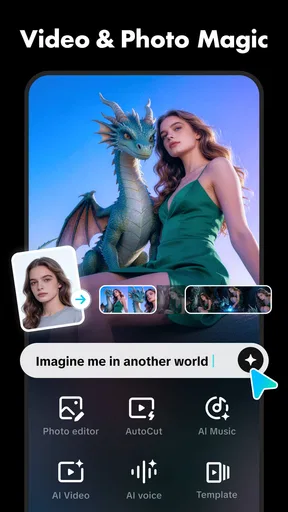
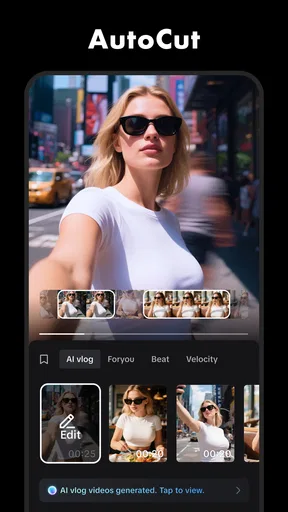
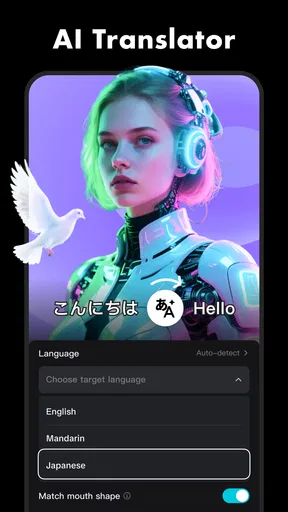
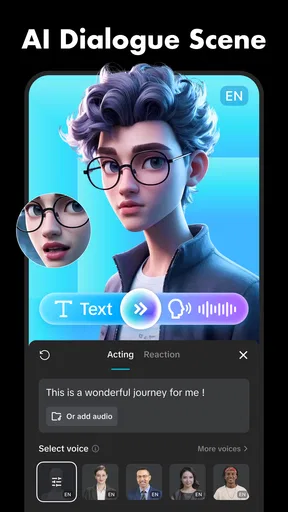
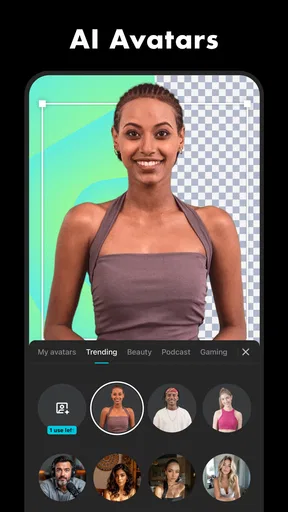
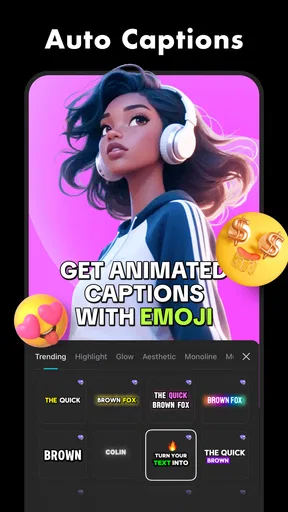
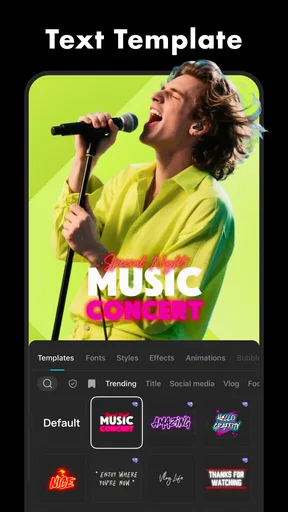
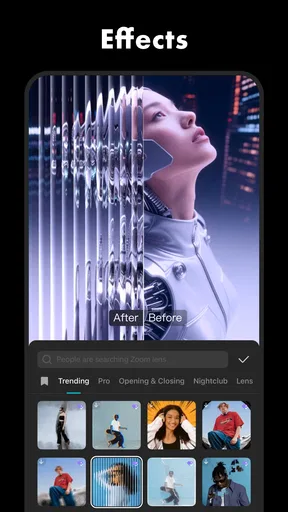
Our Review of CapCut - Video Editor
 Analysis by Appyee
Have you ever wanted to turn your everyday videos into something that looks like it came straight out of a Hollywood studio? Well, let me introduce you to CapCut - Video Editor. I recently downloaded it, and let me tell you, this app is a game-changer! Whether you're a vlogging newbie or a seasoned editor, CapCut has something for everyone.
Readability, navigation, and the first edit
First things first, downloading the app is a breeze. It's available on both Android and iOS, so no worries about compatibility. Once installed, you're greeted with a sleek, user-friendly interface. I was pleasantly surprised by how intuitive it is. Seriously, even if tech isn’t your thing, you’ll find your way around without needing a degree in computer science.
What helps most is approaching the editor as a sequence of small decisions rather than trying to make a finished film in one pass. I start by choosing the clips that belong together, then trim the beginnings and endings, and only after that add music or effects. This order makes it easier to notice whether an edit actually improves the story or just adds visual noise. It also gives a new user a clear stopping point: a simple cut-and-join video can be complete without exploring every menu.
CapCut is a video editor from Bytedance Pte. Ltd. It is free to install, though in-app purchases range from $0.49 to $669.99 per item, so I would check any purchase prompt carefully rather than assuming every option is included at no cost. Its average rating is 3.5 from around 13 million ratings, and it has more than a billion installs. Those figures suggest a widely used app, but they do not tell you whether its workflow will suit your hands, eyes, device, or style of editing.
Editing, access, and sharing in everyday use
I find that the most useful way to judge CapCut is to focus on how its editing choices fit different people and situations, not just how many tools it offers. In this section, I look at ways to keep a project manageable and comfortable to review, before considering where the phone-based workflow can still get in the way.
Editing features and practical workflows
Now, let’s dive into the features. CapCut offers a plethora of editing tools that cater to both basic and advanced editing needs. You can trim, split, and adjust the speed of your clips with ease. The app also includes a variety of filters and effects that can give your videos a unique touch. I had a blast experimenting with the transitions and effects; it felt like having a mini studio in my pocket!
For a useful everyday test, imagine filming a short cooking clip: a wide shot of the ingredients, a closer view of the chopping, and a final shot of the finished dish. I would first arrange those moments in order, remove the pauses, and then use speed adjustment only where it makes the action clearer. A restrained transition between steps usually keeps the result easier to follow than applying a different effect to every cut. That is a practical way to learn the timeline without making the edit harder to review.
One of the standout features is the music library. CapCut provides an extensive collection of tracks to choose from, all royalty-free, which is perfect if you’re planning to share your creations on social media. And if you have your own tunes, importing them is a piece of cake.
When music is part of the edit, I would listen back once with the volume lowered and once with the sound off. The first check helps catch a track that overwhelms speech; the second reveals whether the sequence still makes sense visually. That small review habit is useful for viewers watching without sound and for anyone who needs the important information to come through in more than one way. It also prevents a soundtrack from doing all the storytelling.
Motor and sensory considerations
If you’re someone who loves getting into the nitty-gritty of video editing, CapCut won’t disappoint. The app includes advanced features like chroma key, keyframe animation, and multi-track editing. These tools allow for a level of customization that can elevate your videos to professional standards. I had a lot of fun playing around with the chroma key feature; it’s surprisingly effective for an app that’s free!
Those tools bring flexibility, but they also ask for more precise choices. Multi-track editing can make it easier to separate a voice, music, and visual layers, yet a crowded timeline can become difficult to inspect on a phone screen. I find it sensible to name or organize a project around its purpose in my own mind, keep only the layers I need, and preview changes often. Keyframes are most rewarding when I have a specific movement in mind; adding them simply because they are available can turn a clean clip into a distracting one.
Touch editing also has a natural trade-off: trimming close to a frame or selecting a narrow track can require careful finger placement. If that feels fiddly, I would make the broad edits first, zoom in only for a detail that truly matters, and avoid trying to perfect every cut on a small display. A larger-screen editor may be a better fit for long projects or work where exact timing is essential. This is not a failure of skill; it is a sensible choice of tool for the task.
For sensory comfort, I would treat effects and transitions as optional accents. Strong visual changes can make a clip lively, but repeated flashes, rapid cuts, or busy overlays may be tiring for some viewers. I keep an unfiltered copy of the original clips and preview the final sequence before exporting, especially if other people will watch it. That lets me remove an effect that competes with the subject instead of assuming that more processing means a better video.
CapCut also supports 4K video editing, which is a big plus if you’re working with high-resolution footage. The rendering speed is impressive, and I didn’t experience any lag, even when working on longer projects.
High-resolution editing is useful when detail matters, but it is not automatically the right choice for every short social post. Before committing to a demanding export, I would check that the footage and intended destination benefit from the extra detail, then leave enough time to review the finished file. A quick preview can catch a crop that cuts off a face, a title that sits too close to an edge, or a transition that feels abrupt. For a casual clip, a simpler edit may be quicker to finish and easier to share.
Situational access and choosing the right tool
Once you’ve finished editing, sharing your video is seamless. CapCut allows you to export directly to popular platforms like TikTok, Instagram, and YouTube. The app compresses your video efficiently, maintaining quality while optimizing for quick uploads. I tried exporting a video to Instagram, and it was a breeze.
That direct route is handy when I am making a short post and already know where it will go. For example, after filming a weekend walk, I can cut together a few moments, add a restrained soundtrack, and prepare a clip for a social feed without moving through a separate desktop workflow. If I am making a video for several destinations, I would check the framing and text placement before exporting: a composition that looks balanced in one format may not suit another screen layout. The final preview is worth the extra minute.
Compared with a basic phone editor, CapCut gives me more room to layer clips and shape timing, so it suits someone who has outgrown simple trimming but still wants to work on a mobile device. Compared with a desktop editing program, it is easier to reach for a quick social video, while a desktop setup is usually more comfortable for long timelines, detailed audio work, or edits that need a large preview. I would choose based on the project rather than treating one editor as the winner for every job.
The app is a good match for casual creators, short-form video makers, and beginners who want to learn by trying edits on real clips. It may be less suitable if you rarely make videos, prefer a very minimal editor, or need long, carefully controlled projects on a small screen. CapCut is rated for teens, and its current version is 18.0.0, with Android support starting at version 6.0. Its release date was April 10, 2020, and it has about 120,000 written reviews. I would not use popularity alone to decide; a brief test with a few personal clips will tell you more about its pace and controls.
Remaining barriers and a balanced verdict
One practical question is whether a beginner can make something worthwhile without learning every advanced tool. In my experience, yes: trimming, arranging, and choosing one restrained finishing touch are enough for a clear short video. Another is whether it makes sense to use for a longer project. It can, but the comfort of a phone-sized timeline becomes a real consideration as the number of clips and layers grows. For a complex edit, I would move to a larger screen rather than forcing a mobile workflow.
People also often wonder whether an editor’s social sharing options mean every export is ready for every platform. I still preview the result and check the destination’s framing needs, because the best composition depends on where the video will appear. And if an in-app purchase prompt appears, I would pause to read what is being offered and whether I actually need it; the free starting point is useful, but the listed purchase range is broad.
CapCut belongs to the video players and editors category, but I see it primarily as a hands-on creation tool rather than just a way to watch clips. Its strongest point is the range between quick edits and more layered experimentation. Its main compromise is that extra control can mean extra decisions, and touch precision and screen space matter more as a project becomes complicated. I would recommend trying it with a short, low-stakes video before building a large project around it.
Overall, CapCut - Video Editor is a fantastic tool for anyone looking to create stunning videos without breaking the bank. It’s packed with features that rival even some desktop editors. So, if you’re ready to unleash your creativity and make your videos pop, I’d say give CapCut a whirl. It’s free, fun, and fantastically easy to use!
Privacy and Permissions
See what permissions an app requests and how it handles your data.
- Calendar
- read calendar events plus confidential information, add or modify calendar events and send email to guests without owners' knowledge
- Photos/Media/Files
- read the contents of your USB storage, modify or delete the contents of your USB storage
- Storage
- read the contents of your USB storage, modify or delete the contents of your USB storage
- Camera
- take pictures and videos
- Microphone
- record audio
- Wi-Fi connection information
- view Wi-Fi connections
- Other
- view network connections, change network connectivity, full network access, close other apps, draw over other apps, use accounts on the device, control vibration, prevent device from sleeping, toggle sync on and off, install shortcuts, uninstall shortcuts
How CapCut - Video Editor Compares
Full ComparisonCapCut suits beginners who want polished effects, KineMaster fits creators seeking layered, precise edits, and VivaVideo is a good match for quick, template-led videos.
| App | Developer | Rating | Price |
|---|---|---|---|
 CapCut - Video EditorThis App | Bytedance Pte. Ltd. | 3.5 | Free |
 KineMaster - Video Editor | KineMaster, Video Editor Experts Group | 4.4 | Free |
 VivaVideo - Video Cut & Editor | QuVideo Inc. Video Editor & Video Maker App | 4.3 | Free |
Verdict
Strengths of CapCut - Video Editor
- User-friendly interface, easy for beginners.
- Rich library of effects and filters.
- High-quality exports with no watermark.
- Frequent updates with new features.
- Supports multiple video formats.
Limitations of CapCut - Video Editor
- Occasional lag on older devices.
- Some features require in-app purchases.
- Resource-heavy, drains battery quickly.
- Limited advanced editing tools.
- Ads can interrupt workflow.
Other Releases by Bytedance Pte. Ltd.
View All
Hypic - Photo Editor & AI Art
Photography3.0

CapCut Pad
Video Players & Editors3.4
Similar Picks in This Category
View All
Google TV
Google LLC3.9

iTunes
Apple4.7

YouTube
Google LLC3.8

MX Player
Amazon Mobile LLC4.2

PLAYit-All in One Video Player
PLAYIT TECHNOLOGY PTE. LTD.4.5

VivaVideo - Video Cut & Editor
QuVideo Inc. Video Editor & Video Maker App4.3
You May Also Like
View All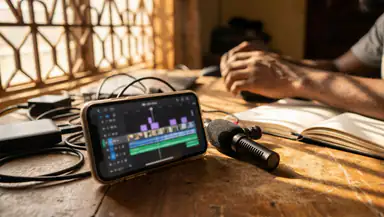


Frequently Asked Questions
What features does CapCut offer for video editing?
CapCut provides a comprehensive suite of video editing tools, including trimming, merging, and splitting clips. It offers a variety of filters, effects, and transitions, as well as options for adding text and stickers. Users can also leverage advanced features like speed adjustments, reverse video, and chroma key for green screen effects.
Is CapCut free to use, or does it require a subscription?
CapCut is free to download and use, providing access to a wide range of features without any cost. While the app does offer in-app purchases for additional resources or effects, the core functionality remains free, making it an excellent choice for both casual and serious video editors.
Can CapCut export videos in high resolution?
Yes, CapCut supports exporting videos in high resolution, including HD and 4K. This ensures that your edited videos maintain excellent quality, suitable for sharing on various platforms such as YouTube, Instagram, and TikTok. Users can choose the resolution that best fits their needs during the export process.
Is CapCut suitable for beginners in video editing?
CapCut is highly user-friendly, making it suitable for beginners. The intuitive interface and easy-to-use tools help new users quickly learn the basics of video editing. Additionally, the app provides tutorials and tips within the platform, allowing beginners to explore more advanced features at their own pace.
Does CapCut support collaboration or sharing projects with others?
Currently, CapCut is designed for individual use and does not natively support direct collaboration on projects. However, users can export their projects and share the files with others for further editing or review. This makes it possible to work collaboratively through file sharing, though not in real-time within the app.
